Client Portal
The Client Portal
Everything your clients (and staff, if enabled) use lives across a handful of automatically-created WordPress pages — Login, Dashboard, Tickets, Ticket, My Files, Support Hours, Buy Support Hours, and My Profile. How these get created and what each one is for is covered in Getting Started; this article covers the two pages that haven't been detailed anywhere else yet — Dashboard and My Files — plus a full look at My Profile.
Every one of these is a real WordPress page with a single shortcode in its content ([supportivo_dashboard], [supportivo_tickets], and so on) — not a rigid, locked-down template. That's what makes the customization options at the end of this article possible.
Dashboard
The Dashboard is the first thing a client (or staff member) sees after logging in — a quick-glance summary rather than a place to do any actual work.
It shows three cards:
- Support Hours — the current balance, with a link to view history or buy more.
- Open Tickets — a count, with a link to the full Tickets list. This counts open tickets among the 5 most recently updated, not a true total across every ticket you have — with more than 5 tickets in play, treat it as a quick pulse check rather than an exact number.
- Need help? — a shortcut straight to creating a new ticket.
Below the cards, Recent Tickets lists the last 5 tickets, most recently updated first, each one clickable straight through to that ticket.
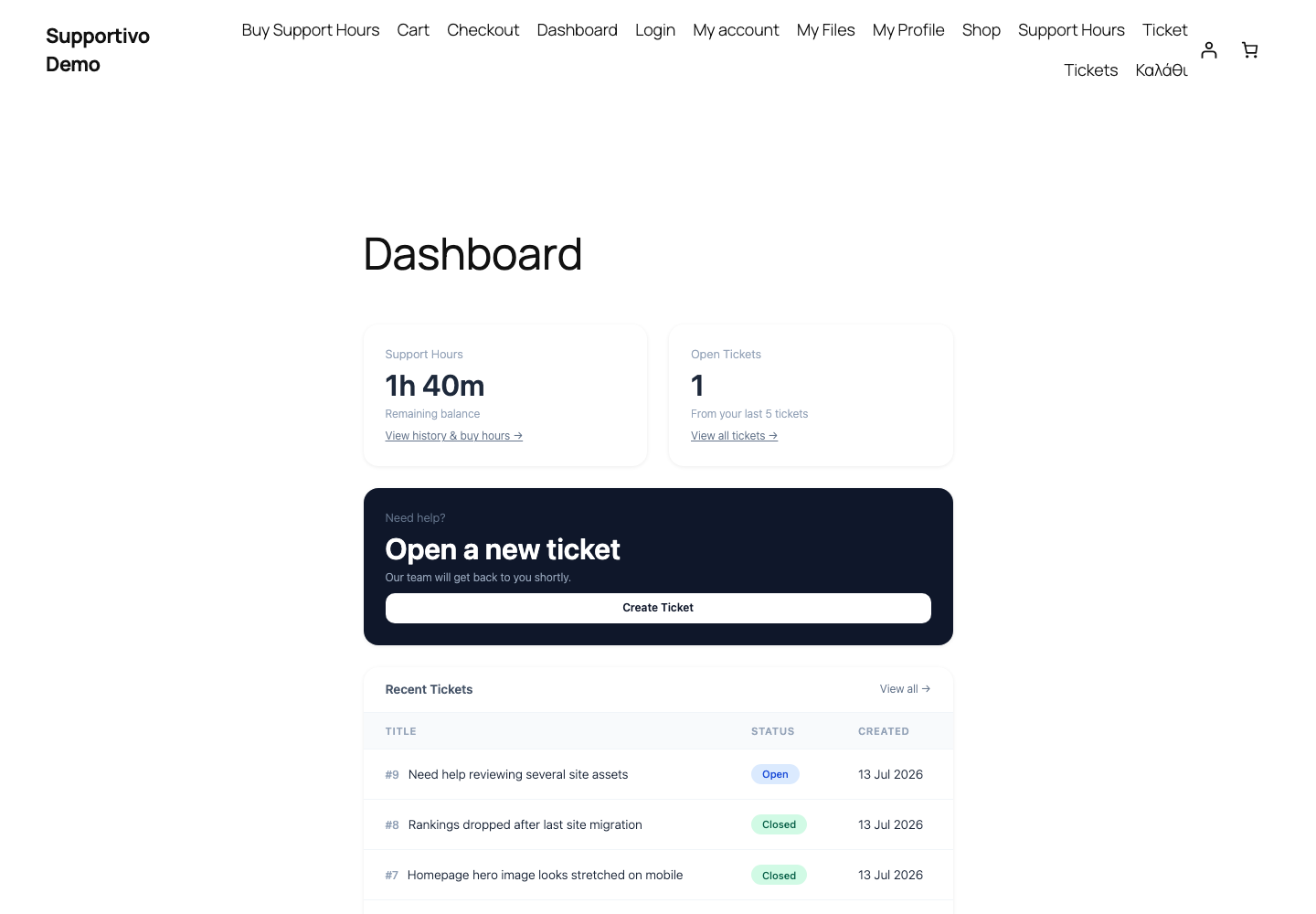 Shown with the Twenty Twenty-Five default WordPress theme active — your frontend may look different depending on your site's active theme.
Unlike the main Tickets page — where staff and Administrators see every client's tickets — the Dashboard's "Recent Tickets" list for a Staff Agent only shows tickets they own. Only Administrators see every client's tickets summarized on the Dashboard.
My Files
My Files is the client's full attachment library — every file they've ever uploaded or received on any ticket, in one searchable place, independent of which ticket it came from.
- Search by filename or file type.
- Filter by month and year.
- Upload file — add something to your library directly, without attaching it to a specific ticket reply first.
The table itself shows, per file: name and type, which ticket it's linked to (if any, with a direct link), who uploaded it, size, how long ago it was added, and two actions — Download and Delete.
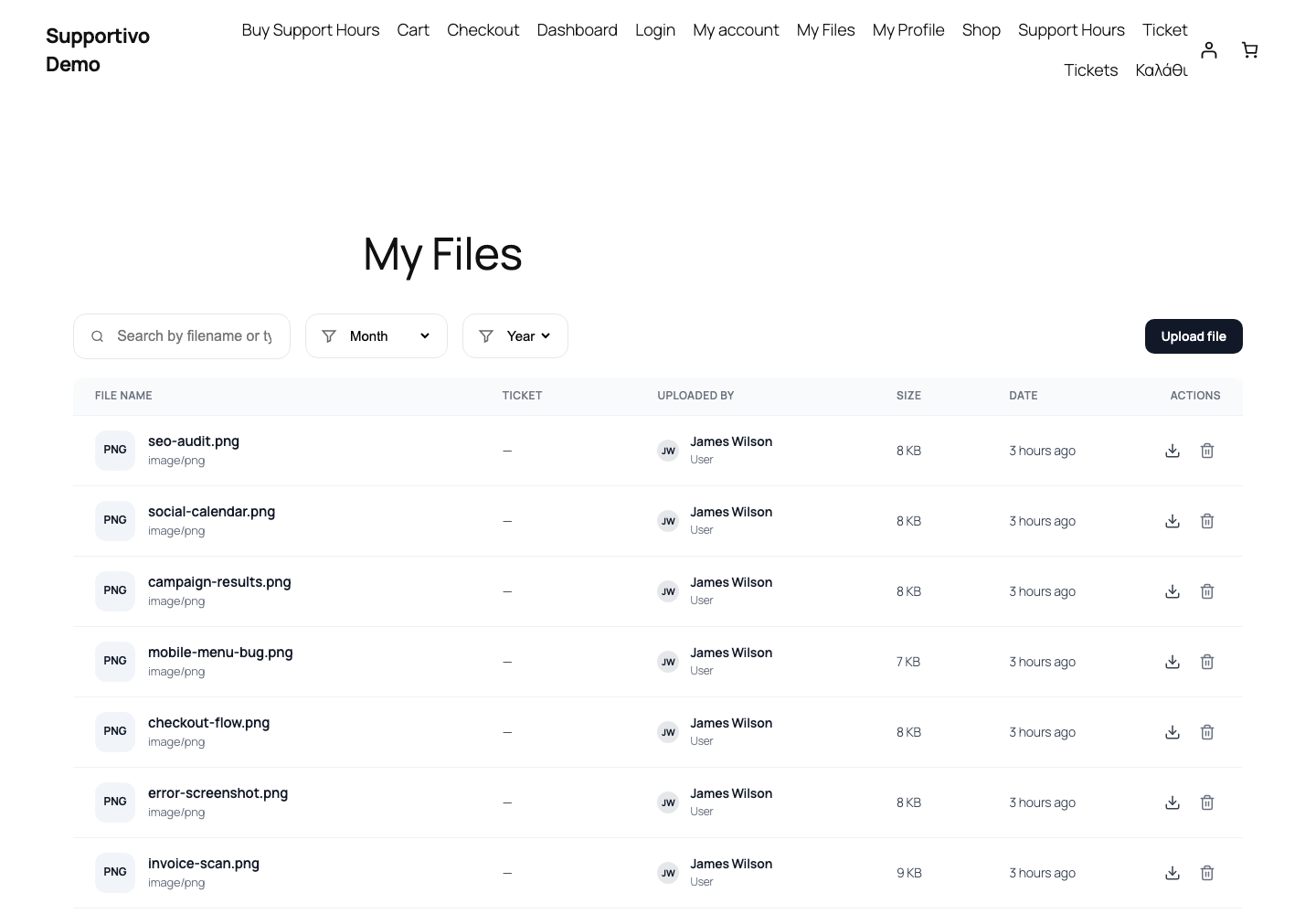 Shown with the Twenty Twenty-Five default WordPress theme active — your frontend may look different depending on your site's active theme.
This is the same library that shows up inside the attachment picker when replying to a ticket — see Ticket Management → Attaching Files to a Reply for how a file gets reused from here without re-uploading it.
My Profile
My Profile is where a client manages their own account details:
- First name, last name, company, and VAT number (VAT is always optional).
- Email address.
- Password — changing it requires entering the current password alongside the new one.
- Avatar — click the existing avatar to pick a new image; it uploads and saves immediately, no separate save step.
- Email notifications — a checkbox to opt out of emails about their own tickets.
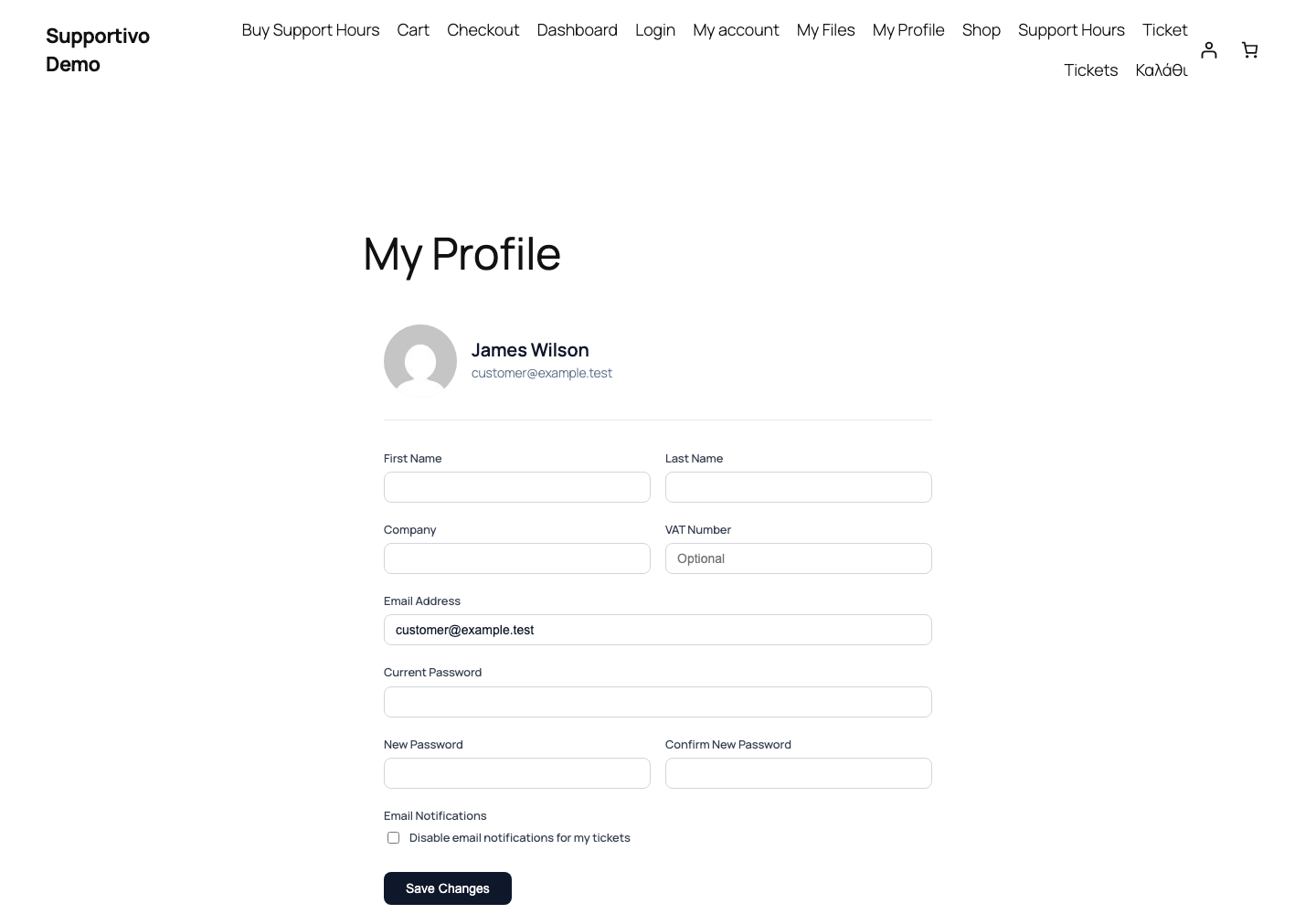 Shown with the Twenty Twenty-Five default WordPress theme active — your frontend may look different depending on your site's active theme.
The email opt-out checkbox is covered in more detail in Ticket Management → Managing Email Notifications — in short, it only ever affects that one client's own emails, never your staff's.
Language
Supportivo doesn't have its own language switcher — there's nothing in the portal for a client to pick a different language than the one the rest of your site is running in. It simply follows your site's configured language: Greek and English are built in and translate automatically based on your site's locale, and it's fully translation-ready for any other language via standard WordPress .po/.mo files, the same as the rest of your site.
Customizing the portal pages
Because every portal page is a normal WordPress page with a shortcode in it, you have more room to adjust things than you might expect:
- Move them. Rename, reorder, or relocate any of these pages in your site's navigation menu exactly like any other page — there's nothing special pinning them in place.
- Add your own content around them. Feel free to add an introduction, extra blocks, or your theme's usual page elements above or below the shortcode — just don't remove the shortcode block itself, since that's what actually renders the ticket list, dashboard, or whichever page it is.
- Page builders. Since the underlying mechanism is a plain shortcode, any page builder that can output a shortcode (a "Shortcode" widget/element, or just pasting
[supportivo_tickets]into a text block) will work. Builders that strip unrecognized shortcodes or sanitize content aggressively may need the shortcode added back manually after editing.
If a page ever gets accidentally deleted or the shortcode gets removed, you can always create a new page and add the appropriate shortcode back in — the underlying data (tickets, files, balances) isn't stored on the page itself, so nothing is lost by recreating it.