Email Notifications
Email Notifications (Free)
Supportivo sends a handful of automatic emails so nobody has to keep refreshing the portal to know something happened:
- New ticket — when a client opens a ticket, they get a confirmation email ("Your support request has been received"), and everyone on your team gets a "New ticket opened" alert at the same time.
- New reply — when your team replies, the client gets emailed. When the client replies, the staff already handling that ticket get emailed back (falling back to your whole team if nobody's replied on it yet, so nothing gets missed).
Both directions are two-way: you never have to check the portal just to see whether someone answered.
Turning it on or off
Email Notifications is a toggle in the Setup Wizard's Features step — see Getting Started for the full walkthrough. It's an all-or-nothing switch: when it's off, none of these emails go out to anyone, client or staff.
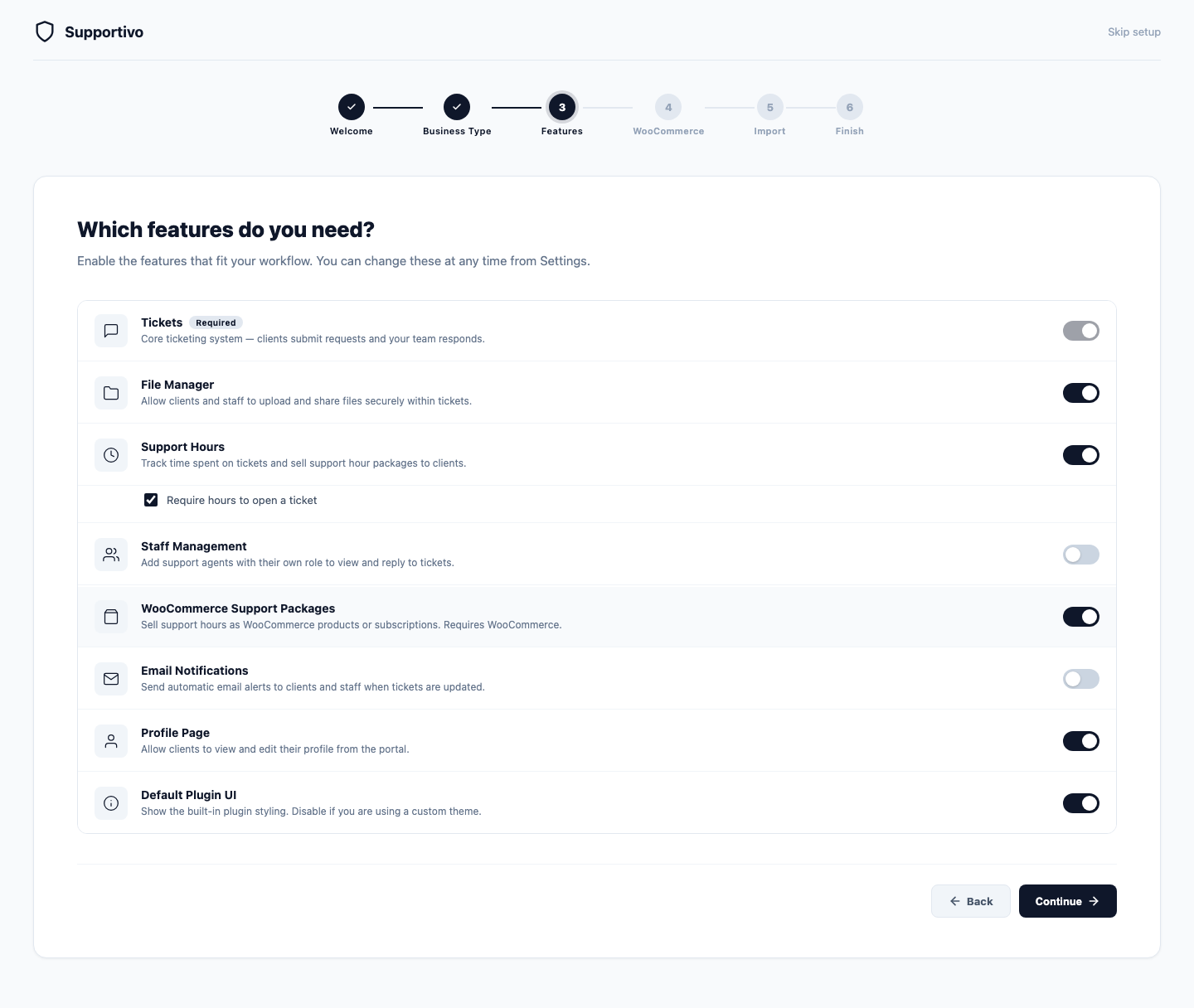 Shown with the Twenty Twenty-Five default WordPress theme active — your frontend may look different depending on your site's active theme.
Letting a client opt out of their own emails
A client can turn off email notifications for themselves from My Profile, without affecting anyone else. This is covered in Ticket Management → Managing Email Notifications; it isn't repeated here — the short version is that it only ever affects that one client's own emails, never your staff's.
Custom Email Templates (Premium)
Every notification email is built from a small set of PHP template files, each wrapped in the same branded layout (your site name in the header, a consistent footer). Out of the box, these come from the plugin itself and aren't editable from wp-admin — there's no visual template editor.
What you can do is override any individual template from your active child theme. Supportivo looks for a file at:
your-child-theme/supportivo/emails/{template-name}.php
— and uses it instead of its own default, if one exists. The four templates you can override this way are:
| Template | Sent to | When |
|---|---|---|
new-ticket-client | Client | Their new ticket is received |
new-ticket-staff | Staff | A client opens a new ticket |
reply-to-client | Client | Staff replies to their ticket |
reply-to-staff | Staff | A client replies to their ticket |
This is a developer-level customization — you (or your developer) copy one of the plugin's own template files into your child theme at that path and edit the HTML/PHP directly, rather than filling in a form. There's no setting to turn this on; it works automatically as soon as a matching file exists in the right place.
This is Premium-only: on the Free plan, a child theme override file at that path is simply ignored, and the plugin's own default template is always used instead — so if you're testing this on Free and don't see your override take effect, that's expected.