Support Hours & WooCommerce
Support Hours (Free)
Support Hours lets you track how much time you (or your team) spend on each client's tickets, and — if you want — stop clients from opening new tickets once they run out.
Turning it on
Support Hours is a toggle in the Setup Wizard's Features step, alongside an optional "Require hours to open a ticket" sub-option. See Getting Started for the full wizard walkthrough. Both can also be changed later from Settings.
"Require hours to open a ticket"
When this is on, a client with a zero balance won't see the ticket form at all — they see a message explaining they're out of hours instead, with a Buy Support Hours button (Premium, if you sell packages via WooCommerce) or a note asking them to contact you directly. See Ticket Management for what that looks like.
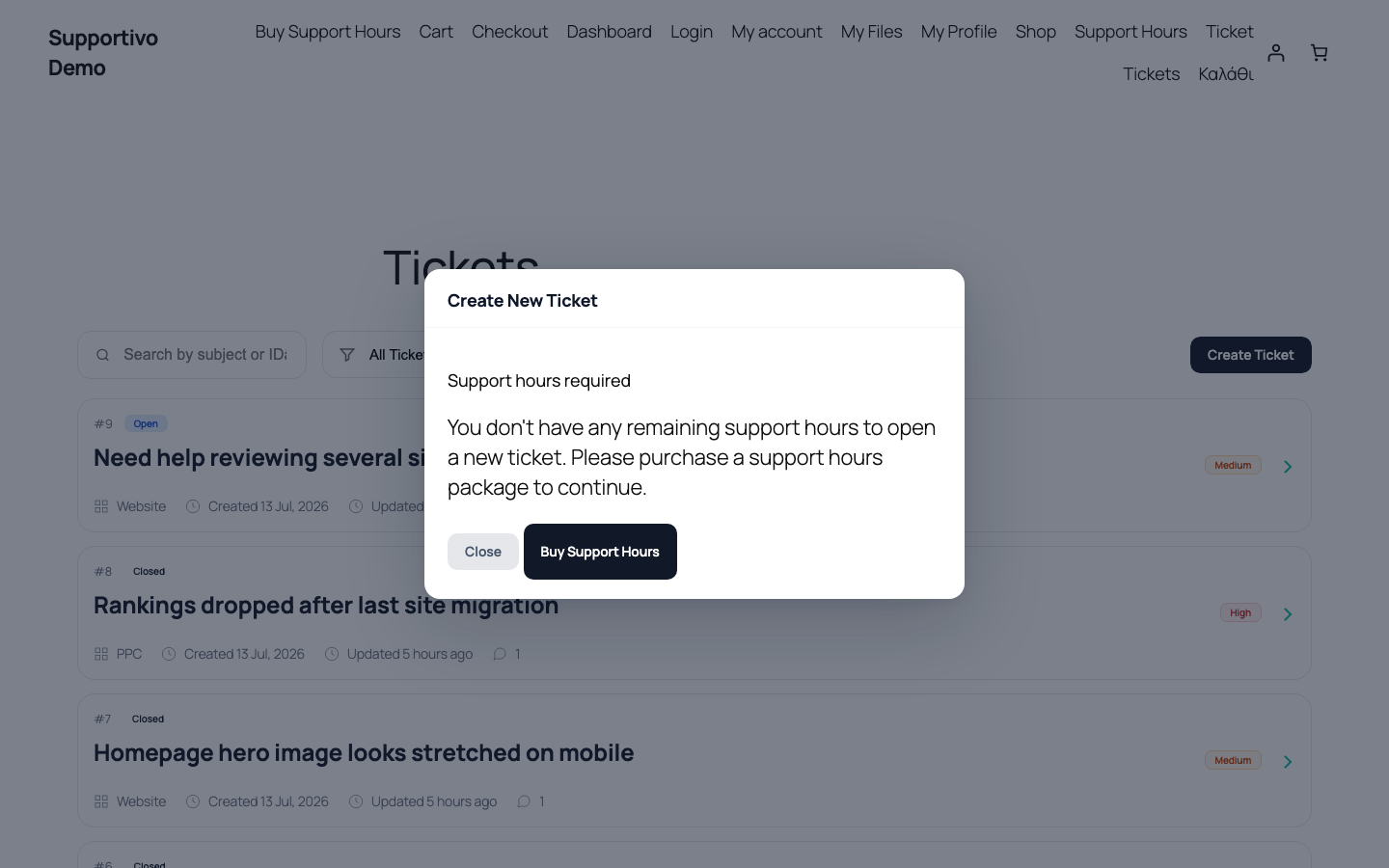 Shown with the Twenty Twenty-Five default WordPress theme active — your frontend may look different depending on your site's active theme.
Logging time on a ticket
Staff log time spent whenever they close a ticket (or afterward, if the client closed it themselves first). That whole flow — the minutes dialog, the "Needs hours review" badge, and the separate "Log support hours" follow-up action — is covered in detail in Ticket Management → Closing a Ticket; it isn't repeated here.
Where the client sees their balance
Clients have their own Support Hours page in the portal, showing:
- Their current balance, as a plain "Xh Ym" figure.
- A Buy Support Hours button if you sell packages via WooCommerce (Premium) — or, on Free, a note asking them to contact you directly instead.
- A history table of every credit and debit on their account — date, a plain-English description ("Used on ticket #7", "Order #142", "Credits added by admin"...), a source badge (Ticket / WooCommerce / Admin / Subscription / Manual), and the amount, with debits and credits visually distinguished.
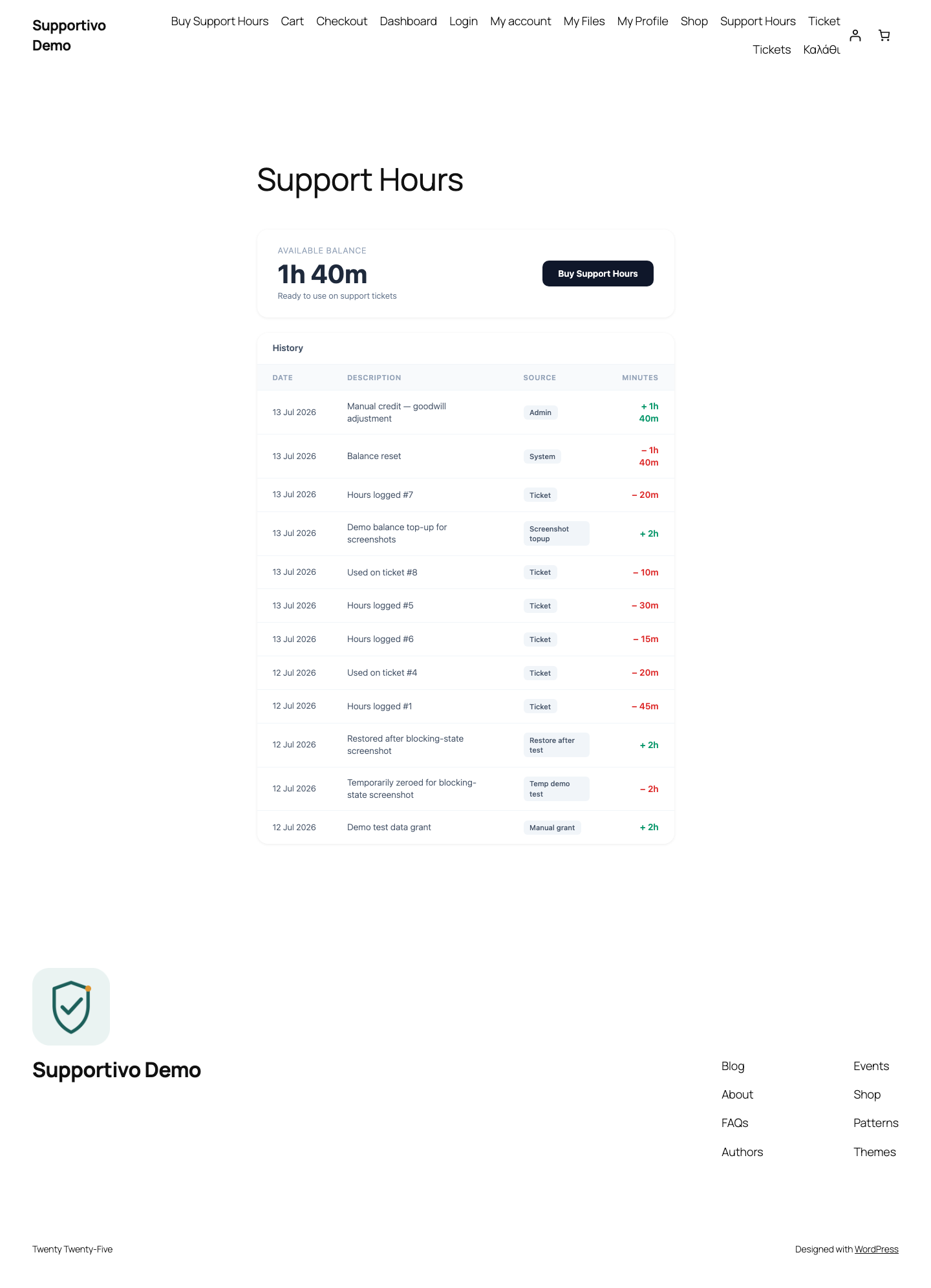 Shown with the Twenty Twenty-Five default WordPress theme active — your frontend may look different depending on your site's active theme.
Where you adjust balances manually
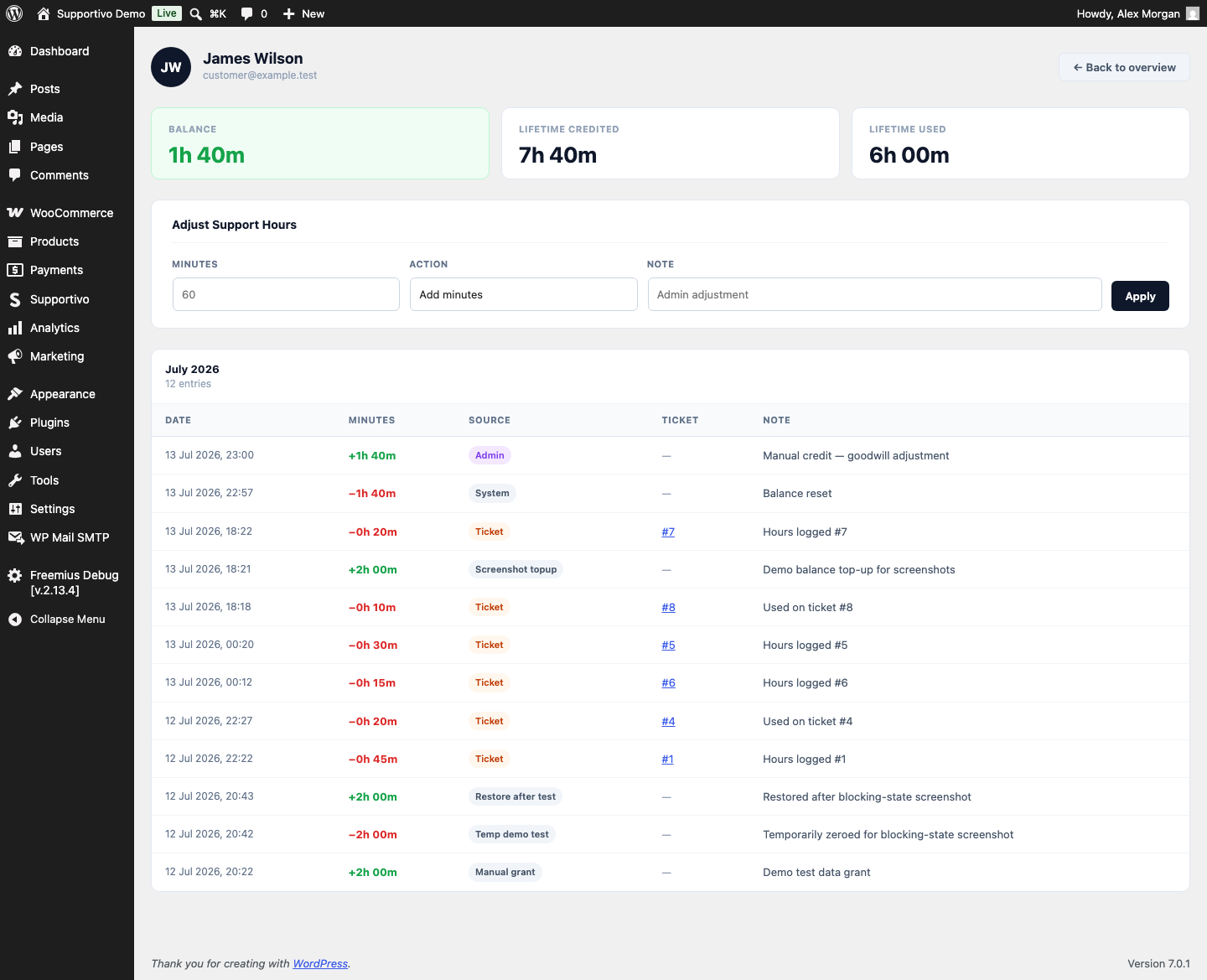
From wp-admin → Supportivo → Support Hours, you get a monthly overview across every client: total minutes credited, used, and net, with a searchable, paginated list of users and their monthly totals.
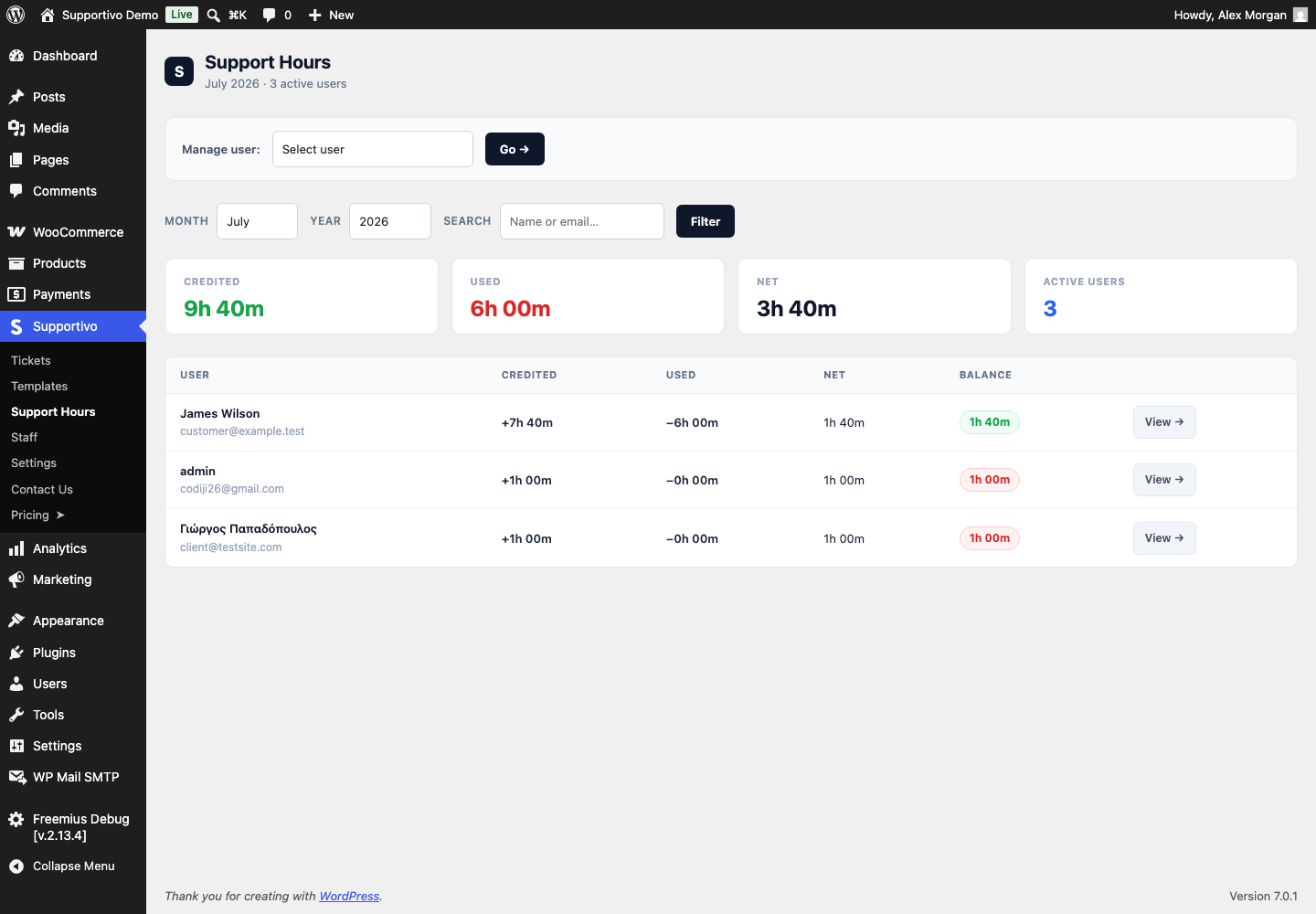
Clicking into a specific user takes you to their own page, with their all-time credited/used totals, their current balance, a full month-by-month entry history, and an Adjust Support Hours form right there — add or deduct a specific number of minutes, with an optional note, no WooCommerce order or ticket required. This is how you'd hand a client a goodwill credit, or correct a mistake.
WooCommerce Support Packages (Premium)
Premium lets you sell support hours as real WooCommerce products, so clients can top up their own balance without you lifting a finger.
Turning it on
This is set up from the Setup Wizard's WooCommerce step, which only appears if you enabled WooCommerce Support Packages in the Features step. If WooCommerce isn't installed yet, the wizard can install and activate it for you on the spot. Full walkthrough in Getting Started.
The default packages
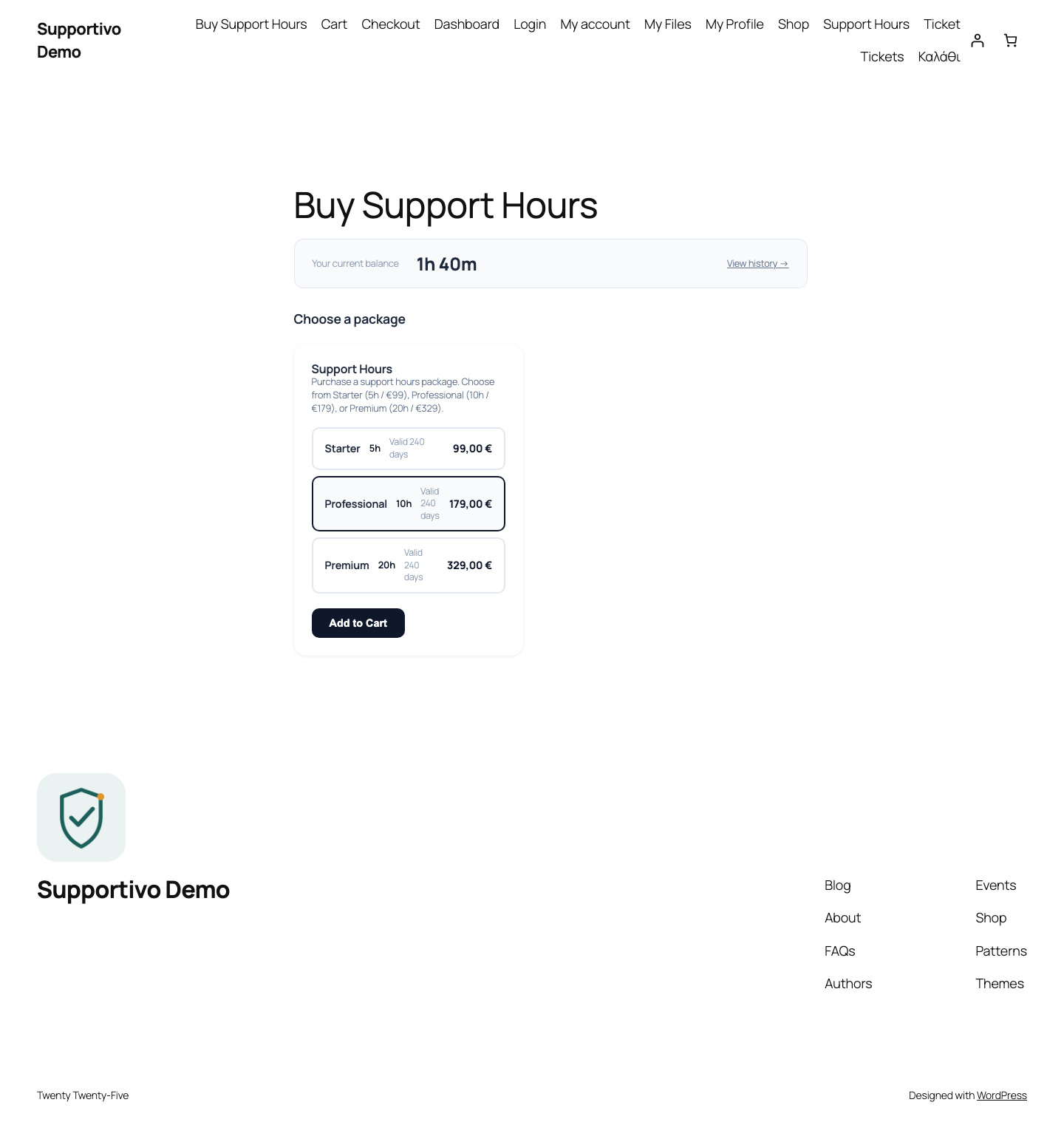
If you leave "Create default products" on during setup, Supportivo creates one WooCommerce product called "Support Hours," with three built-in packages to choose from:
| Package | Hours | Price |
|---|---|---|
| Starter | 5h | €99 |
| Professional | 10h | €179 |
| Premium | 20h | €329 |
These aren't three separate product listings — they're three selectable cards on Supportivo's own dedicated Buy Support Hours page (auto-created by the Setup Wizard, linked from the "Buy Support Hours" button wherever it appears in the portal). The page also shows the client's current balance and a link back to their history. A client picks a card before clicking Add to Cart, and the price updates to match the selected package.
 Shown with the Twenty Twenty-Five default WordPress theme active — your frontend may look different depending on your site's active theme.
You're free to rename, reprice, remove, or add packages afterward from the product's own edit screen in WooCommerce — the three above are just a starting point, not something you're locked into.
How a purchase credits the client's balance
As soon as a WooCommerce order containing a Support Hours package reaches Completed status, Supportivo automatically credits that client's balance with the package's minutes (multiplied by quantity, if they bought more than one). There's nothing to click or approve on your end — it's fully automatic, and shows up in the client's history table with a "WooCommerce" source badge and the order number.
Hours expiry
If you turned on hours expiry during setup, purchased packages don't last forever. Each credit carries its own expiry date — either exactly one year from purchase, or a custom number of days, depending on what you configured — and an hourly background check quietly marks expired credits as unusable once their date passes. Balances always reflect only the hours that haven't expired yet; manually-adjusted or ticket-related entries are never affected by expiry, only purchased package credits are.
WooCommerce Subscriptions (recurring packages)
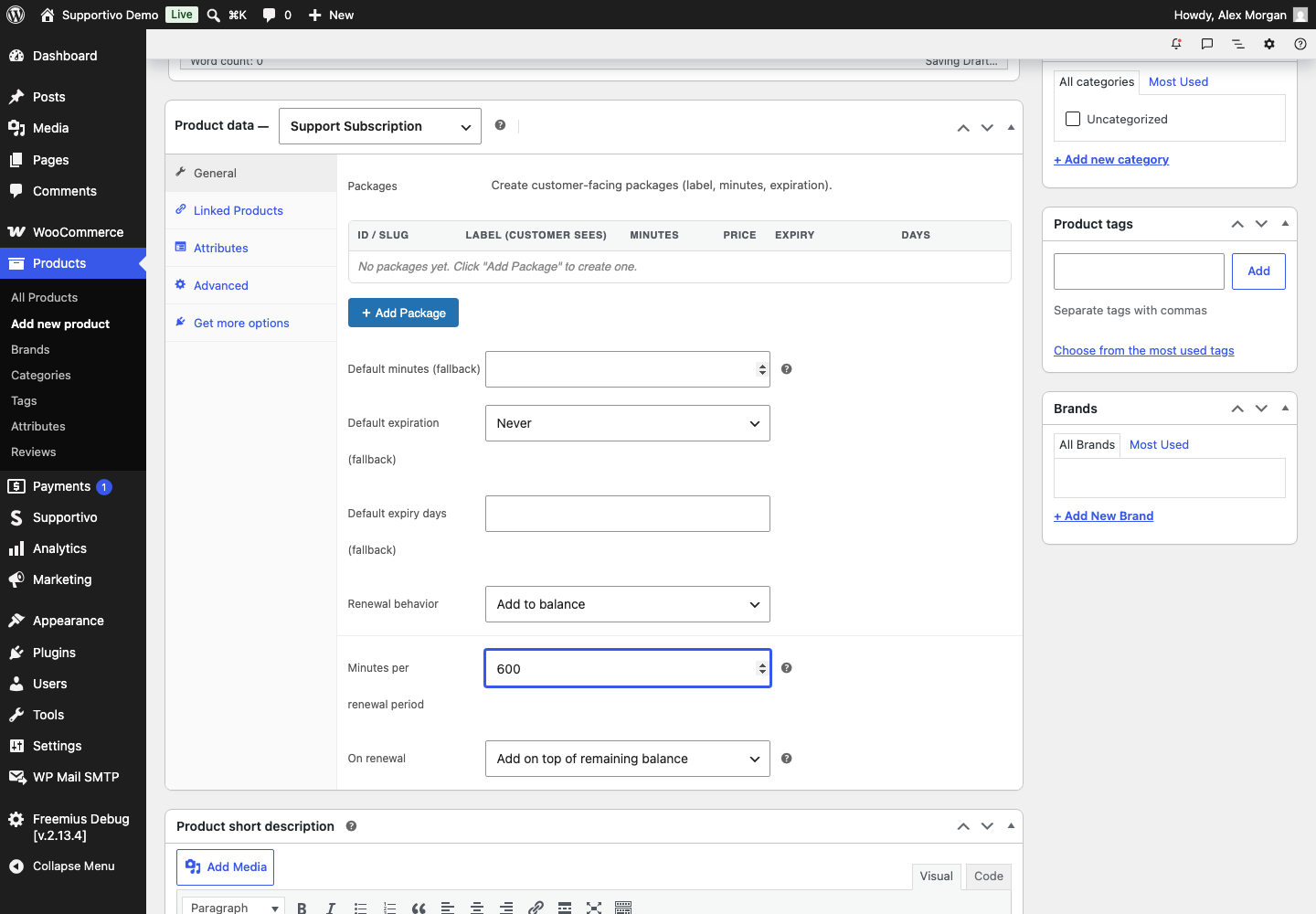
If you also have the separate WooCommerce Subscriptions plugin active, Supportivo adds a second, distinct product type — Support Subscription — for recurring retainer-style packages (e.g., "10 hours every month for €150"), separate from the one-time packages above. Each subscription product has its own minutes-per-renewal amount and a choice of renewal behavior:
- Add on top of remaining balance — unused hours roll over and stack with the new renewal's hours.
- Reset balance then add — any unused hours from the previous period are cleared before the new ones are credited.
Minutes are credited automatically both when the subscription first activates and on every successful renewal payment — again, nothing for you to do manually.